Java, Programming
Java File I/O: Read, Write, and Manage Files
· Eric B.
Java file I/O is the set of classes that read data from files into your program and write data from your program back to disk. Almost every real application touches it: a config loader reads application.properties, a report writer saves a CSV, an autograder reads your submission and writes a score. This guide covers the two stream families, the modern NIO.2 Path and Files API, buffering, serialization, and the exceptions that most often break file code. If a Java assignment has you stuck on file handling, our Java homework help team works through the same patterns shown below.
How Java I/O streams work
A stream is a one-way channel that carries data between your program and a source or destination, one element at a time. Read streams pull data in. Write streams push data out. Java splits every stream into one of two families based on what travels through it.
| Family | Carries | Base classes | Concrete file classes | Best for |
|---|---|---|---|---|
| Byte streams | Raw 8-bit bytes | InputStream, OutputStream | FileInputStream, FileOutputStream | Images, audio, PDFs, serialized objects |
| Character streams | Decoded characters | Reader, Writer | FileReader, FileWriter | .txt, .csv, .json, source code |
The split matters because of encoding. A byte stream moves bytes untouched, which is exactly right for a JPEG where every byte is data. A character stream runs bytes through a charset to turn them into characters, which is what you want for text. Pick the wrong family for text and multibyte characters break.
Byte streams for binary data
FileInputStream and FileOutputStream read and write raw bytes. Reach for them when the content is not text. Every example below runs on OpenJDK 27.
try (FileInputStream inputStream = new FileInputStream("image.jpg")) {
    int data;
    while ((data = inputStream.read()) != -1) {
        // process each byte
    }
} catch (IOException e) {
    System.err.println("Error reading image: " + e.getMessage());
}
Character streams for text
FileReader and FileWriter decode bytes into characters and back. They read text without you handling bytes by hand.
try (FileReader reader = new FileReader("notes.txt", StandardCharsets.UTF_8)) {
    int ch;
    while ((ch = reader.read()) != -1) {
        System.out.print((char) ch);
    }
} catch (IOException e) {
    System.err.println("Error reading text: " + e.getMessage());
}
The charset argument matters. Without it, FileReader falls back to the platform default, which differs between Windows, macOS, and Linux. That single omission is the most common cause of garbled characters across machines, so pass StandardCharsets.UTF_8 every time. The FileReader(String, Charset) constructor arrived in Java 11; on older versions, wrap a FileInputStream in an InputStreamReader with the charset instead.
Reading a file line by line with Scanner
Scanner reads a file line by line through the same hasNextLine() and nextLine() methods used to read input from the console. Reach for it when a line might hold typed values you want to parse directly, such as nextInt() or nextDouble(), since BufferedReader only hands back raw String lines and leaves the parsing to you. For plain text with no parsing, BufferedReader reads faster, because Scanner’s regex-based tokenizing does work a simple line copy does not need.
import java.io.File;
import java.io.FileNotFoundException;
import java.util.Scanner;

public class ReadLinesWithScanner {
    public static void main(String[] args) throws FileNotFoundException {
        File file = new File("notes.txt");

        try (Scanner scanner = new Scanner(file)) {
            while (scanner.hasNextLine()) {
                String line = scanner.nextLine();
                System.out.println(line);
            }
        }
    }
}
With notes.txt holding three lines of text, running the program prints:
first line
second line
third line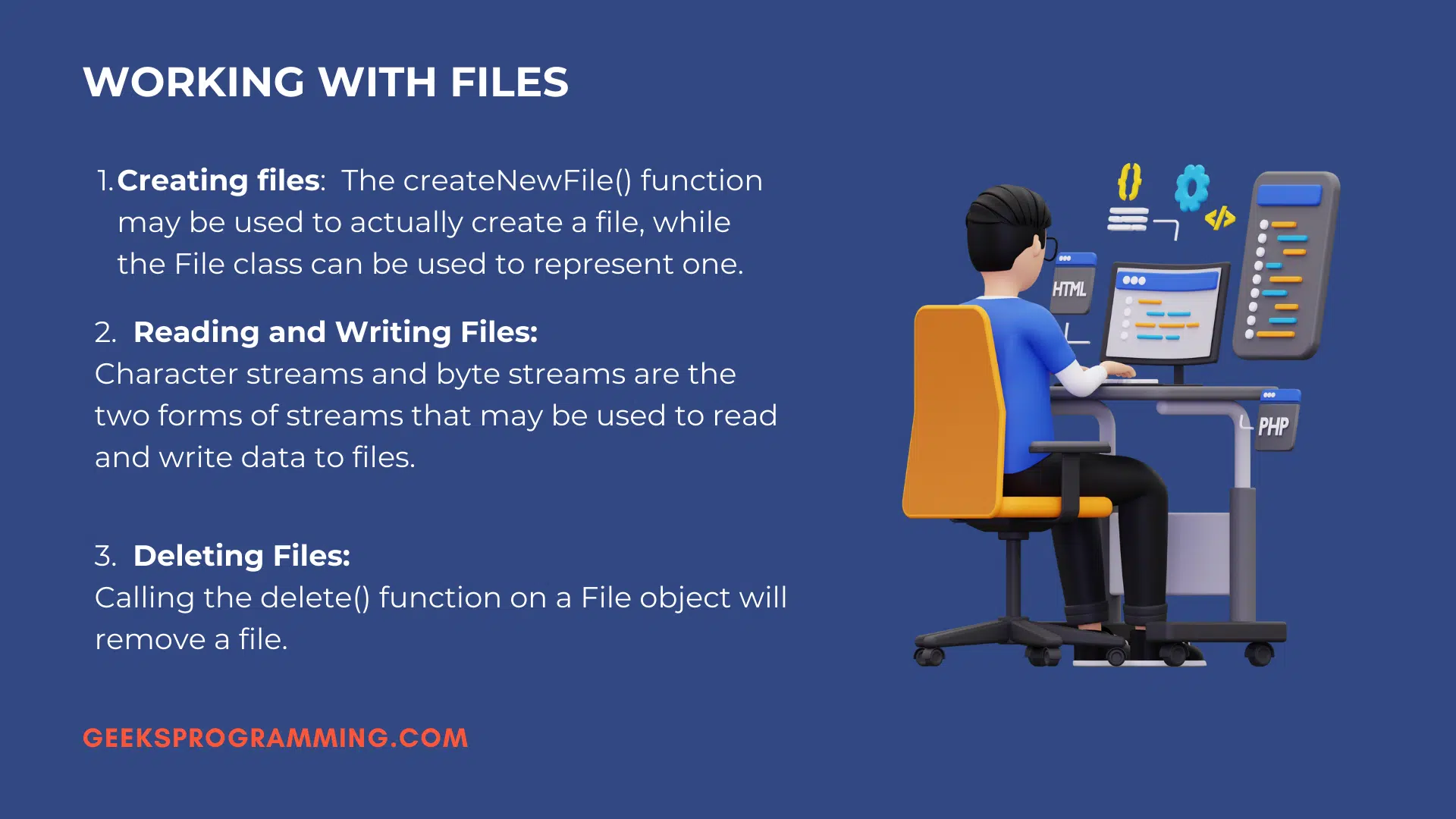
Creating, reading, writing, and deleting files
The four core file operations each map to a small set of methods, and the right method depends on whether you reach for the old File class or the modern Files class. The examples below show both so you can read legacy code and write new code with the same understanding.
Create a file
The legacy File.createNewFile() returns a boolean and an existing file makes it return false rather than throw. The NIO Files.createFile(path) throws FileAlreadyExistsException instead, which is harder to ignore by accident.
import java.io.File;
import java.io.IOException;

public class FileCreationExample {
    public static void main(String[] args) {
        File newFile = new File("example.txt");
        try {
            if (newFile.createNewFile()) {
                System.out.println("File created.");
            } else {
                System.out.println("File already exists.");
            }
        } catch (IOException e) {
            System.err.println("Error creating file: " + e.getMessage());
        }
    }
}
Copy one file to another
Copying with byte streams reads a chunk into a buffer and writes the chunk back, repeating until read returns -1. The 8 KB buffer cuts the number of system calls compared with reading one byte at a time.
import java.io.FileInputStream;
import java.io.FileOutputStream;
import java.io.IOException;

public class FileCopyExample {
    public static void main(String[] args) {
        try (FileInputStream input = new FileInputStream("source.txt");
             FileOutputStream output = new FileOutputStream("destination.txt")) {
            byte[] buffer = new byte[8192];
            int bytesRead;
            while ((bytesRead = input.read(buffer)) != -1) {
                output.write(buffer, 0, bytesRead);
            }
            System.out.println("File copied.");
        } catch (IOException e) {
            System.err.println("Error copying file: " + e.getMessage());
        }
    }
}
One line replaces all of that with NIO: Files.copy(source, destination, StandardCopyOption.REPLACE_EXISTING). The manual version still earns its place when you need to transform bytes as they pass through, such as encrypting or compressing on the fly.
Delete a file
File.delete() returns false on failure and tells you nothing about why. Files.delete(path) throws a typed exception, so you learn whether the file was missing (NoSuchFileException) or the permission was denied (AccessDeniedException).
import java.nio.file.Files;
import java.nio.file.Path;
import java.nio.file.NoSuchFileException;
import java.io.IOException;

public class FileDeletionExample {
    public static void main(String[] args) {
        Path file = Path.of("example.txt");
        try {
            Files.delete(file);
            System.out.println("File deleted.");
        } catch (NoSuchFileException e) {
            System.err.println("No such file: " + e.getFile());
        } catch (IOException e) {
            System.err.println("Could not delete: " + e.getMessage());
        }
    }
}
Always close with try-with-resources
Every stream above sits inside try (...), and that placement is deliberate. A file handle is a finite operating-system resource. Leave a stream open and you leak a descriptor; on Windows the file stays locked so nothing else can touch it. Try-with-resources calls close() the moment the block exits, even when an exception fires, so you never write a finally block to close a stream by hand.
Reading and writing text the modern way
The one-line Files helpers cover most text I/O, and choosing between them comes down to file size. Small files load whole; large files stream.
For a small file that fits in memory, read or write it in a single call with Files.readString:
import java.nio.file.Files;
import java.nio.file.Path;
import java.nio.charset.StandardCharsets;
import java.io.IOException;

public class ReadWholeFile {
    public static void main(String[] args) throws IOException {
        Path path = Path.of("config.txt");
        String content = Files.readString(path, StandardCharsets.UTF_8);
        System.out.println(content);

        Files.writeString(Path.of("out.txt"), "saved at " + System.currentTimeMillis(),
                StandardCharsets.UTF_8);
    }
}
For a large file, never load it all at once. Stream it line by line so memory stays flat no matter how big the file grows:
import java.nio.file.Files;
import java.nio.file.Path;
import java.util.stream.Stream;
import java.io.IOException;

public class StreamLines {
    public static void main(String[] args) throws IOException {
        try (Stream<String> lines = Files.lines(Path.of("server.log"))) {
            lines.filter(line -> line.contains("ERROR"))
                 .forEach(System.out::println);
        }
    }
}
Against a log with two ERROR lines mixed among INFO lines, the filtered stream prints only the matches:
ERROR disk full
ERROR timeout
Files.lines returns a lazy stream backed by an open file, so it goes inside try-with-resources just like any other stream. The Stream<String> import is the java.util.stream.Stream, not a file stream, which is a naming clash worth keeping straight.
Buffering for speed
Buffering reduces the number of physical disk reads by moving data in large blocks instead of one byte or one character per call. Wrap a raw stream in a buffered stream and a loop that reads thousands of times against the disk reads a handful of times against memory instead.
import java.io.BufferedReader;
import java.io.BufferedWriter;
import java.io.FileReader;
import java.io.FileWriter;
import java.io.IOException;
import java.nio.charset.StandardCharsets;

public class BufferedCopy {
    public static void main(String[] args) {
        try (BufferedReader reader =
                     new BufferedReader(new FileReader("input.txt", StandardCharsets.UTF_8));
             BufferedWriter writer =
                     new BufferedWriter(new FileWriter("output.txt", StandardCharsets.UTF_8))) {
            String line;
            while ((line = reader.readLine()) != null) {
                writer.write(line);
                writer.newLine();
            }
        } catch (IOException e) {
            System.err.println("Error during buffered copy: " + e.getMessage());
        }
    }
}
BufferedReader adds readLine(), which the raw FileReader does not have, so buffering buys both speed and a cleaner line-by-line API. For binary data the equivalents are BufferedInputStream and BufferedOutputStream. The performance gap is real: copying a 50 MB file one byte at a time can run hundreds of times slower than the same copy through an 8 KB buffer.
NIO.2: the Path and Files API
NIO.2, added in Java 7, is the API to use for new file code, and it centers on two types: Path describes a location, and Files performs operations on it. The legacy java.io.File class still works, but Files reports failures through typed exceptions instead of a silent false and adds atomic moves, directory streams, and attribute access the old class never had.
The Path class
Path models a file-system location and builds new paths without string concatenation. resolve joins segments and relativize computes the route from one path to another.
import java.nio.file.Path;

public class PathExample {
    public static void main(String[] args) {
        Path base = Path.of("/home/student/projects");
        Path file = base.resolve("assignment/Main.java");
        System.out.println("Full path: " + file);
        System.out.println("File name: " + file.getFileName());
        System.out.println("Parent:    " + file.getParent());
    }
}
Running the example prints the resolved path split into its parts:
Full path: /home/student/projects/assignment/Main.java
File name: Main.java
Parent:    /home/student/projects/assignment
Path.of(...) is the modern factory; Paths.get(...) is the older equivalent and does the same thing. Building paths through resolve instead of gluing strings with "/" keeps code correct on both Windows and Unix because the API uses the platform separator.
The Files class
Files holds static methods for every common operation: copy, move, delete, existence checks, attribute reads, and directory creation. One example reads a file’s size and creation time in a few lines.
import java.nio.file.Files;
import java.nio.file.Path;
import java.nio.file.attribute.BasicFileAttributes;
import java.io.IOException;

public class FileAttributesExample {
    public static void main(String[] args) {
        Path file = Path.of("report.pdf");
        try {
            BasicFileAttributes attrs = Files.readAttributes(file, BasicFileAttributes.class);
            System.out.println("Size:    " + attrs.size() + " bytes");
            System.out.println("Created: " + attrs.creationTime());
            System.out.println("Is dir:  " + attrs.isDirectory());
        } catch (IOException e) {
            System.err.println("Error reading attributes: " + e.getMessage());
        }
    }
}
Working with directories
Directory operations follow the same legacy-versus-NIO split as files, and the NIO versions again report real errors. Three tasks cover most needs: create a directory, list its contents, and walk a tree recursively.
Create directories
Files.createDirectory(path) makes a single directory and throws if the parent is missing. Files.createDirectories(path) makes the whole chain, parents included, which is the safer default.
import java.nio.file.Files;
import java.nio.file.Path;
import java.io.IOException;

public class CreateDirectory {
    public static void main(String[] args) throws IOException {
        Path dir = Path.of("data/reports/2026");
        Files.createDirectories(dir);
        System.out.println("Created: " + dir);
    }
}
List directory contents
The legacy File.list() returns a String[] of names and File.listFiles() returns File[]. The NIO Files.newDirectoryStream(dir) returns a closeable iterator that scales to large directories without building one giant array.
import java.nio.file.DirectoryStream;
import java.nio.file.Files;
import java.nio.file.Path;
import java.io.IOException;

public class ListDirectory {
    public static void main(String[] args) {
        Path dir = Path.of("data/reports");
        try (DirectoryStream<Path> stream = Files.newDirectoryStream(dir, "*.csv")) {
            for (Path entry : stream) {
                System.out.println(entry.getFileName());
            }
        } catch (IOException e) {
            System.err.println("Error listing directory: " + e.getMessage());
        }
    }
}
The "*.csv" glob filters the listing to CSV files at the source, so you do not loop and check extensions yourself.
Recursive traversal and deleting non-empty directories
Neither File.delete() nor Files.delete() removes a directory that still holds files; Files.delete() throws DirectoryNotEmptyException in that case. Walk the tree and delete from the bottom up so every child goes before its parent.
import java.nio.file.Files;
import java.nio.file.Path;
import java.util.Comparator;
import java.io.IOException;

public class DeleteTree {
    public static void main(String[] args) throws IOException {
        Path root = Path.of("data/reports/2026");
        try (var paths = Files.walk(root)) {
            paths.sorted(Comparator.reverseOrder())
                 .forEach(p -> {
                     try {
                         Files.delete(p);
                     } catch (IOException e) {
                         System.err.println("Could not delete " + p + ": " + e.getMessage());
                     }
                 });
        }
    }
}
Files.walk returns every path under the root. Sorting in reverse order puts the deepest entries first, so each directory is empty by the time its turn comes. Skip the sort and you hit DirectoryNotEmptyException.
Serialization and deserialization
Serialization turns an object and everything it references into a byte stream so you can save it to a file or send it across a network; deserialization rebuilds the object from those bytes. A class opts in by implementing the marker interface Serializable.
import java.io.Serializable;

public class Student implements Serializable {
    private static final long serialVersionUID = 1L;
    private final String name;
    private final int age;
    private transient String sessionToken; // skipped on purpose

    public Student(String name, int age) {
        this.name = name;
        this.age = age;
    }

    public String getName() { return name; }
}
Writing the object goes through ObjectOutputStream; reading it back goes through ObjectInputStream.
import java.io.*;

public class SerializeDemo {
    public static void main(String[] args) {
        Student student = new Student("Ada", 21);

        try (ObjectOutputStream out =
                     new ObjectOutputStream(new FileOutputStream("student.ser"))) {
            out.writeObject(student);
        } catch (IOException e) {
            System.err.println("Write failed: " + e.getMessage());
        }

        try (ObjectInputStream in =
                     new ObjectInputStream(new FileInputStream("student.ser"))) {
            Student restored = (Student) in.readObject();
            System.out.println("Restored: " + restored.getName());
        } catch (IOException | ClassNotFoundException e) {
            System.err.println("Read failed: " + e.getMessage());
        }
    }
}
Running the write then read prints the restored object’s name, confirming the round trip worked:
Restored: AdaTwo details earn their keep. The serialVersionUID field pins the class version, so a deserialize against a changed class fails with a clear InvalidClassException instead of corrupt data. The transient keyword excludes a field, which is how you keep a password or a live connection out of the byte stream. Native serialization is brittle across versions and unsafe on untrusted input, so for data shared with other languages or stored long term, prefer JSON or a schema format like Protobuf.
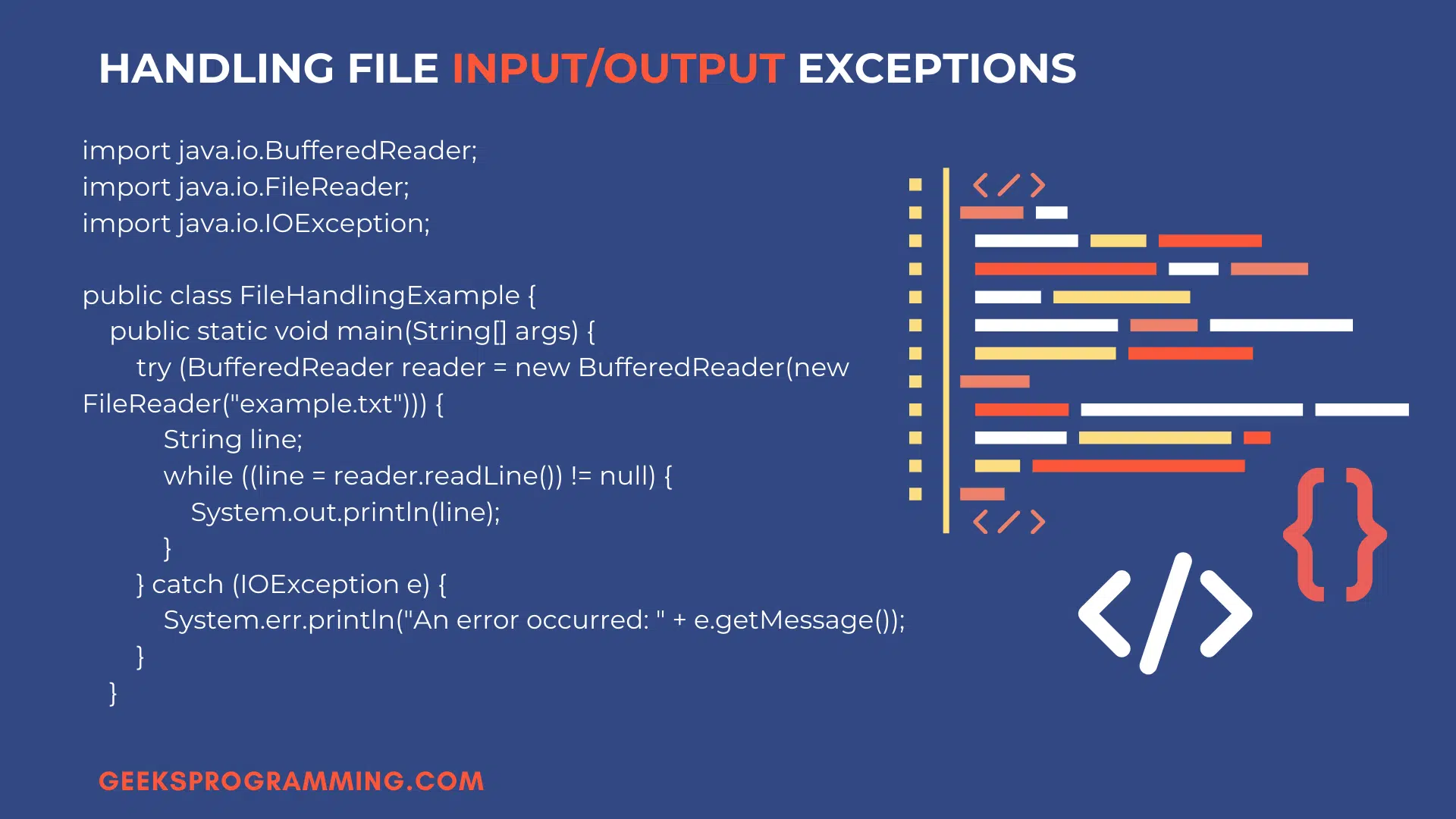
Common file I/O exceptions and how to handle them
File code fails for reasons outside your program, so checked exceptions force you to handle them, and the table below maps each one to its real cause. Disk fills up, permissions change, another process holds a lock, a path points somewhere unexpected. The compiler refuses to ignore most of these, which is why nearly every method here declares throws IOException or catches it.
| Exception | Triggered when | Typical fix |
|---|---|---|
FileNotFoundException | Path is missing, is a directory, or is unreadable | Check Files.isRegularFile and Files.isReadable first |
NoSuchFileException | NIO operation targets a missing path | Verify the path with path.toAbsolutePath() |
AccessDeniedException | Process lacks permission for the operation | Confirm file permissions and process owner |
DirectoryNotEmptyException | Deleting a directory that still holds files | Walk and delete contents bottom-up first |
IOException | Any general I/O failure (disk, network, hardware) | Catch as the broad fallback after specific types |
Catch the specific exceptions before the general one, since IOException is the parent of the rest:
import java.nio.file.*;
import java.io.IOException;

public class ReadSafely {
    public static void main(String[] args) {
        Path path = Path.of("data.txt");
        try {
            String text = Files.readString(path);
            System.out.println(text);
        } catch (NoSuchFileException e) {
            System.err.println("Missing file: " + e.getFile());
        } catch (AccessDeniedException e) {
            System.err.println("Permission denied: " + e.getFile());
        } catch (IOException e) {
            System.err.println("I/O error: " + e.getMessage());
        }
    }
}
Run it against a missing data.txt and the specific catch fires:
Missing file: data.txtCreate the file first and the try block succeeds instead, printing its contents.
A bare false from a legacy File method tells you something went wrong but not what. The typed NIO exceptions name the cause, which turns a guessing game into a one-line diagnosis. For the full mechanics of try, catch, finally, and custom exceptions, see our guide to exception handling in Java.
Real-world patterns and best practices
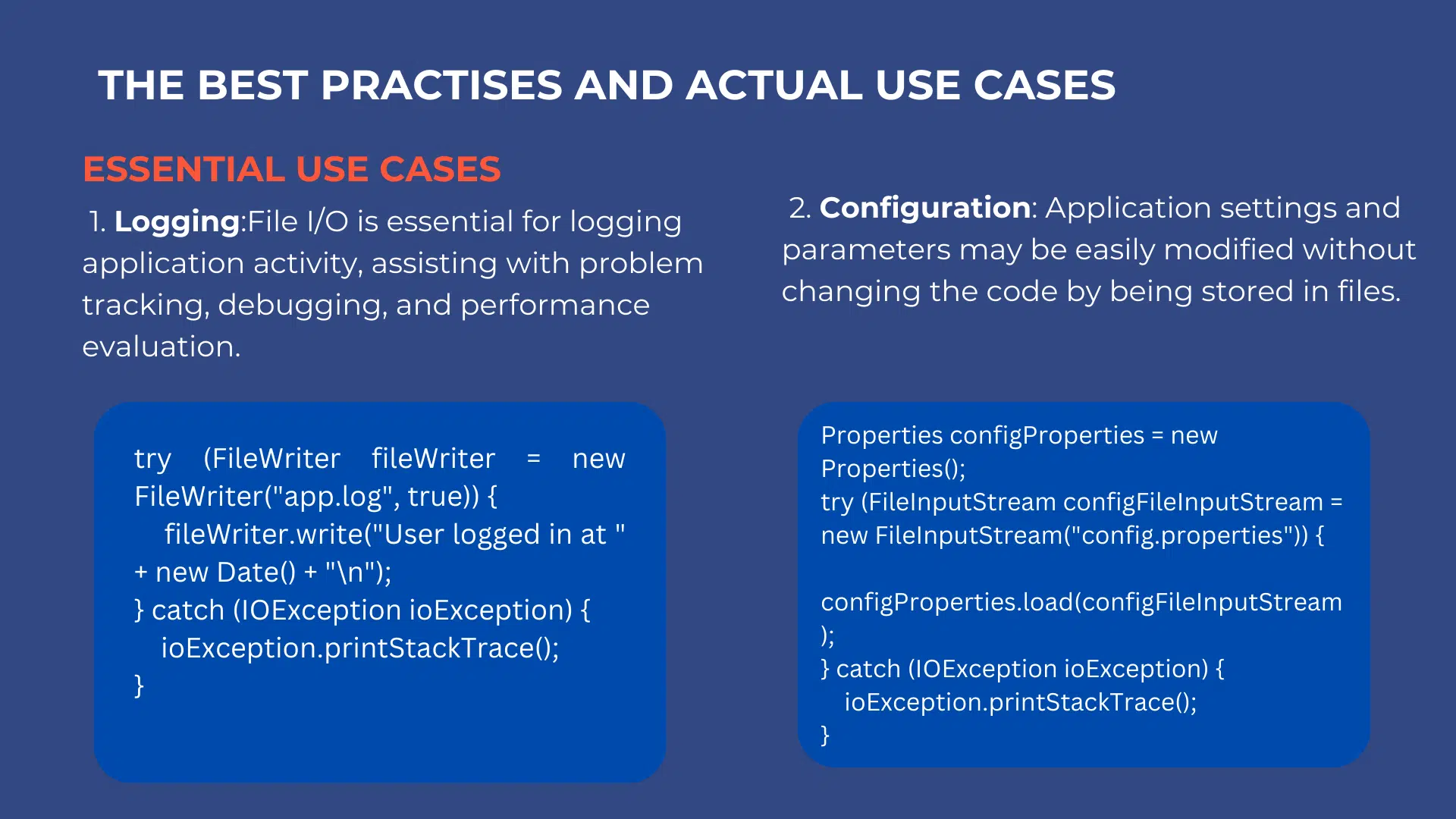
File I/O shows up in logging, configuration loading, data import and export, and report generation, and each one rewards the same habits. Two examples cover the most common cases, followed by the rules that keep file code correct.
A log appender opens the file in append mode so each entry adds to the end:
import java.nio.file.*;
import java.time.Instant;
import java.io.IOException;

public class AppendLog {
    public static void main(String[] args) {
        Path log = Path.of("app.log");
        String entry = Instant.now() + " user logged in" + System.lineSeparator();
        try {
            Files.writeString(log, entry, StandardOpenOption.CREATE, StandardOpenOption.APPEND);
        } catch (IOException e) {
            System.err.println("Log write failed: " + e.getMessage());
        }
    }
}
A config loader reads key-value settings from a properties file so behavior changes without a recompile:
import java.util.Properties;
import java.io.InputStream;
import java.nio.file.Files;
import java.nio.file.Path;
import java.io.IOException;

public class LoadConfig {
    public static void main(String[] args) {
        Properties props = new Properties();
        try (InputStream in = Files.newInputStream(Path.of("config.properties"))) {
            props.load(in);
            System.out.println("Port: " + props.getProperty("server.port", "8080"));
        } catch (IOException e) {
            System.err.println("Config load failed: " + e.getMessage());
        }
    }
}
Five practices keep file handling correct across machines and threads:
- Open every stream in try-with-resources. It closes the handle on success and on exception, so no descriptor leaks.
- Pass an explicit charset for text.
StandardCharsets.UTF_8on every read and write removes platform-default encoding bugs. - Prefer
PathandFilesoverFile. Typed exceptions, atomic moves, and directory streams come for free. - Stream large files, do not load them.
Files.linesand buffered readers keep memory flat regardless of file size. - Use file locking for concurrent writers. A
FileLockfromFileChannel.lock()stops two threads or processes from corrupting the same file. The same care applies whenever you mix file access with Java multithreading.
The collections you read out of files often land in a List, Map, or Set, so pairing file I/O with the Java Collections Framework is a natural next step once the data is in memory.
Frequently asked questions
What is the difference between byte streams and character streams in Java?
Byte streams (FileInputStream, FileOutputStream) move raw 8-bit bytes and suit binary files like images, audio, and serialized objects. Character streams (FileReader, FileWriter) decode bytes into characters using a charset and suit text files. Use a byte stream when the content is not text; use a character stream when it is, and pass an explicit charset such as StandardCharsets.UTF_8 to avoid platform-default encoding bugs.
How do I read a whole text file into a String in Java?
For Java 11 and later, call Files.readString(Path.of("data.txt")). For earlier versions, use new String(Files.readAllBytes(path), StandardCharsets.UTF_8). Both load the entire file into memory, so reserve them for small files. For large files, stream line by line with Files.lines(path) or a BufferedReader inside a try-with-resources block.
What is try-with-resources and why does file I/O need it?
Try-with-resources declares a stream in the parentheses after try, and Java calls close() automatically when the block exits, even on an exception. File handles are a limited operating-system resource, so an unclosed stream leaks a descriptor and can lock the file on Windows. Always open FileReader, FileWriter, and stream classes inside try-with-resources rather than closing them by hand in a finally block.
Should I use java.io.File or java.nio.file.Path for new code?
Use Path and the Files class. NIO.2, added in Java 7, reports the real reason an operation failed through typed exceptions such as NoSuchFileException and AccessDeniedException, while the old File methods return a bare false. Files also offers atomic moves, symbolic-link control, directory streams, and file-attribute access that the legacy File class never had.
Why does my Java file read produce wrong or garbled characters?
Garbled characters mean the charset used to write the file differs from the charset used to read it. FileReader and FileWriter use the platform default charset, which varies by operating system. Read and write with the same explicit charset, for example new InputStreamReader(stream, StandardCharsets.UTF_8) or Files.readString(path, StandardCharsets.UTF_8), so the bytes decode the same way everywhere.
What is serialization in Java and when should I avoid it?
Serialization converts an object graph into a byte stream through ObjectOutputStream so you can save it to a file or send it over a network; ObjectInputStream restores it. A class opts in by implementing Serializable. Avoid native serialization for data shared with other languages or stored long term, because the format is brittle across versions and deserializing untrusted bytes is a known security risk. Prefer JSON or a schema format like Protobuf for those cases.
How do I delete a directory that is not empty in Java?
File.delete() and Files.delete() both fail on a non-empty directory, the first returning false and the second throwing DirectoryNotEmptyException. Walk the tree first and delete from the bottom up. Files.walk(path) returns a stream of paths; sort it in reverse order so children come before parents, then call Files.delete on each entry.
Why does FileNotFoundException appear when the file exists?
FileNotFoundException covers three cases beyond a missing file: the path points to a directory rather than a file, the program lacks read permission, or the working directory is not what you assume so a relative path resolves elsewhere. Print path.toAbsolutePath() to confirm the real location, check Files.isReadable(path), and verify the path is a file with Files.isRegularFile(path).
Get help with your Java file handling assignment
Java file I/O rewards a few consistent habits: pick the right stream family, close every resource with try-with-resources, set the charset, and prefer Path and Files for new code. Build from the small examples here and the same patterns scale to logging, config loading, and data pipelines. When a deadline is close and a file-handling assignment will not run, the developers behind our Java assignment help service write code to your Java version, return a walkthrough you can defend, and take 50% upfront with the other 50% due only after you verify it runs.
Related articles
-
 Java
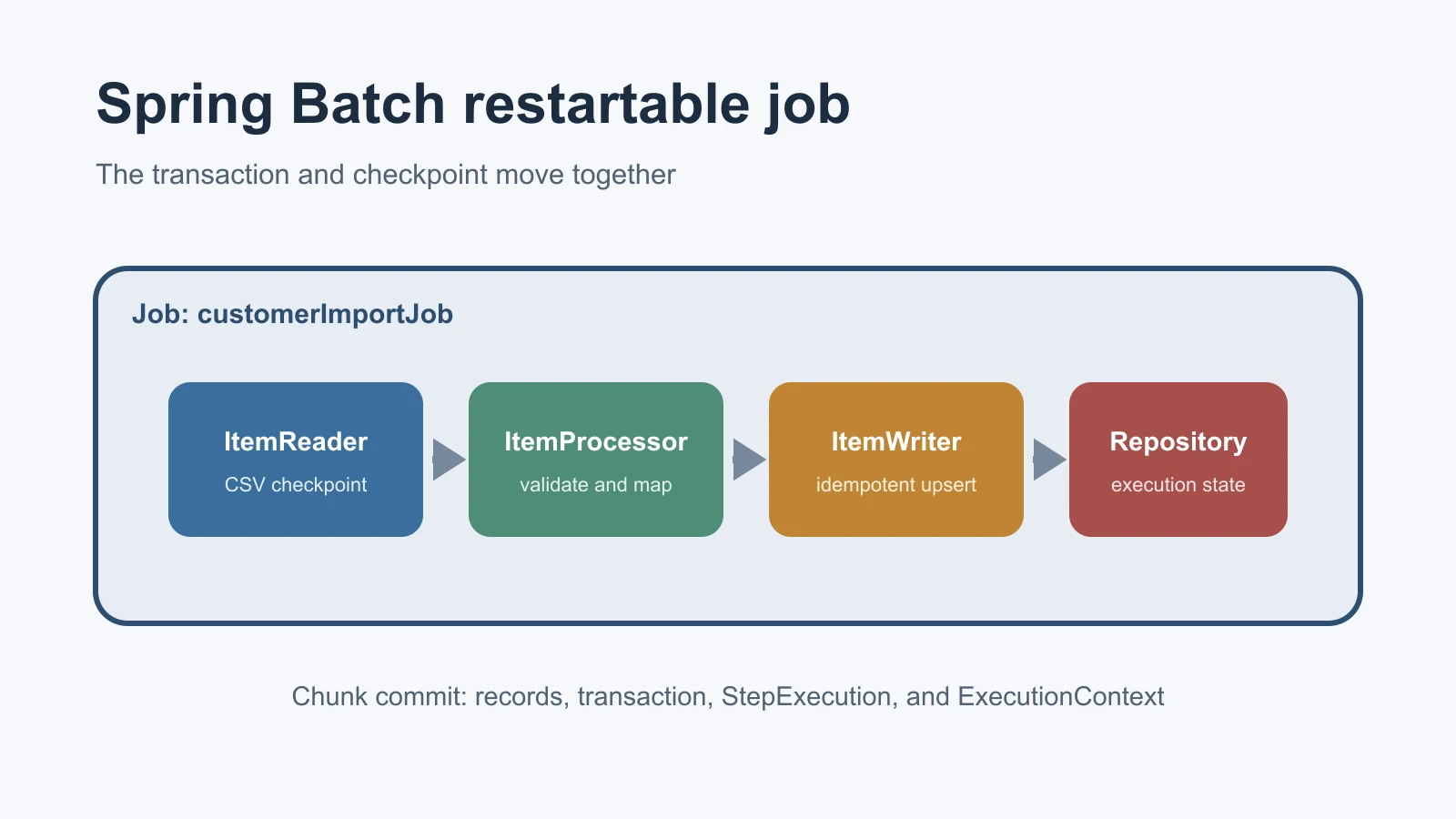
JavaSpring Batch: A Practical Guide to Restartable Jobs
Learn Spring Batch 6 through a restartable CSV-to-database job covering jobs, steps, chunks, metadata, fault tolerance, parameters, testing, and scaling.
Sep 23, 2026
-
 Java
JavaException Handling in Java: Full Guide
How exception handling in Java works: checked vs unchecked, try-catch-finally, custom exceptions, try-with-resources, and the mistakes to avoid.
Sep 25, 2023
-
 Java
JavaSorting Algorithms in Java: Step-by-Step
Bubble Sort and Quick Sort implemented in Java with time complexity analysis, step-by-step code walkthroughs, and working examples you can run immediately.
Jun 23, 2022